Event Staff Scheduling Software: Every Event and Shift in One Place
Event Inflow puts your events and your crew's shifts on one schedule. The calendar shows every event and how many staff it still needs, and the team schedule shows each person's week across all your events. When you staff an event, Event Inflow flags when someone is already working another event or has asked for the day off.
Updated October 2026 · By Mandi Shoemaker
On this page: How it works · Calendar · Team schedule · Staff availability · Who's free · Work outside events · Who it's for · FAQ
How event staff scheduling works in Event Inflow
- Add events to your calendar. Each event shows its time, booking stage, payment status, and how many staff it still needs.
- Invite your crew to set their availability. In My Availability, each staff member turns on the weekdays they usually work and requests specific days off.
- Offer shifts to whoever is free. On each event's staffing page, Event Inflow marks anyone who is Working Another Event or has a Day Off Request for that date.
See what each event needs at a glance
Event Inflow's calendar shows your events by day, week, month, or six weeks at a time, or as a list. Each event shows its booking stage, payment status, and staffing, like "11 staff" or "Needs shifts." It also flags problems, such as a missing location or an inventory shortage.
You can filter the calendar by booking stage, region, and zone, and search by event, client, venue, or event number. The period overview can total your open shifts, pending shift offers, and events that still need shifts.
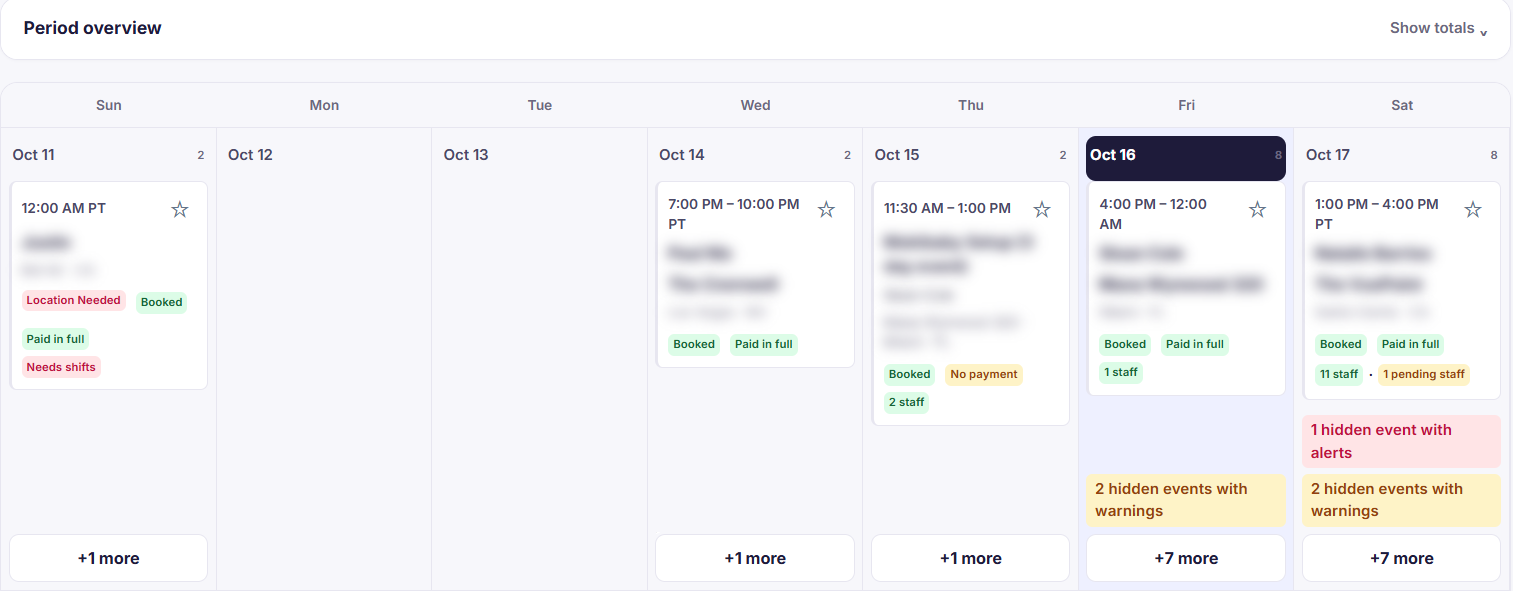
Example: one week of a casino party company's calendar.
See each person's week across all your events
Event Inflow's Team Schedule shows every team member's shifts for the week or the day, across all your events. Open shifts appear in their own row, marked "Needs staff," and shifts that haven't been accepted are marked "Pending acceptance."
Shifts within two hours of each other are grouped into one block, with the breaks between them shown. If someone is scheduled for two shifts at the same time, Event Inflow marks them as overlapping. You can filter the schedule by person, position, or warehouse.
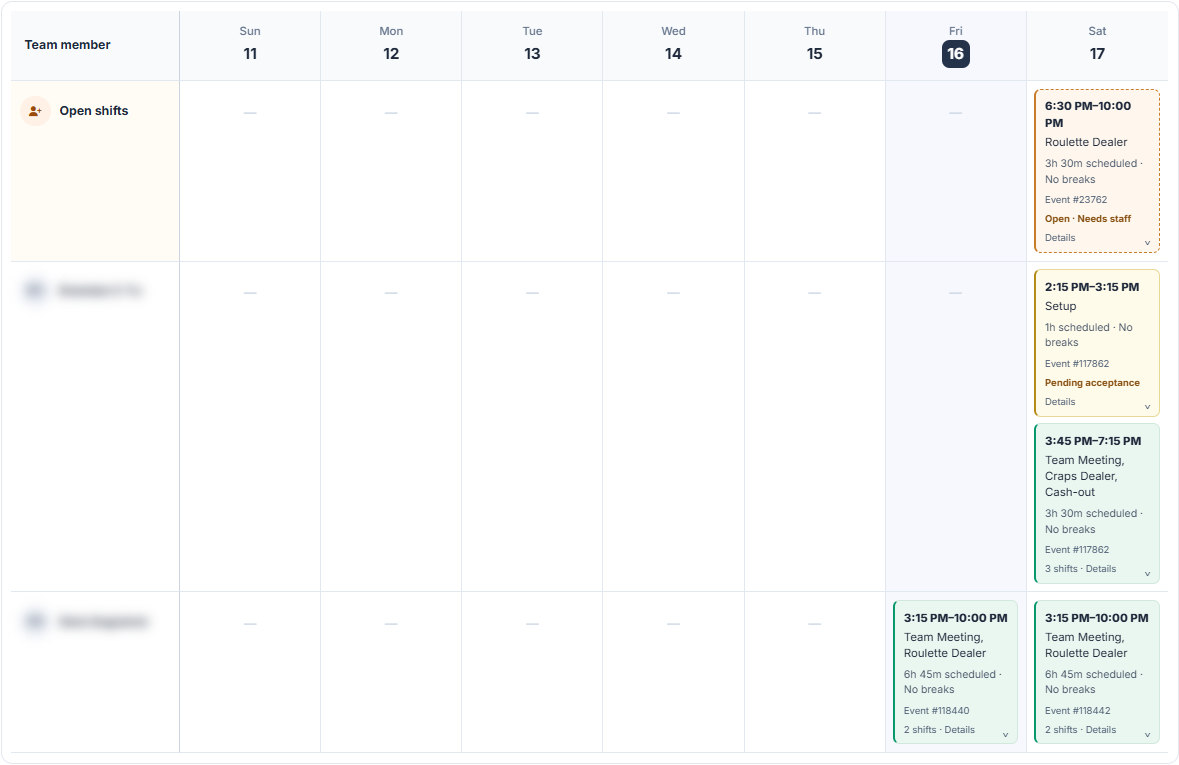
Example: an open shift and two team members' weeks.
Let your crew tell you when they can work
Each staff member in Event Inflow has a My Availability page. They select which days of the week they're normally available, and they can request a single day or a range of days off. Their requested days off are listed on the same page.
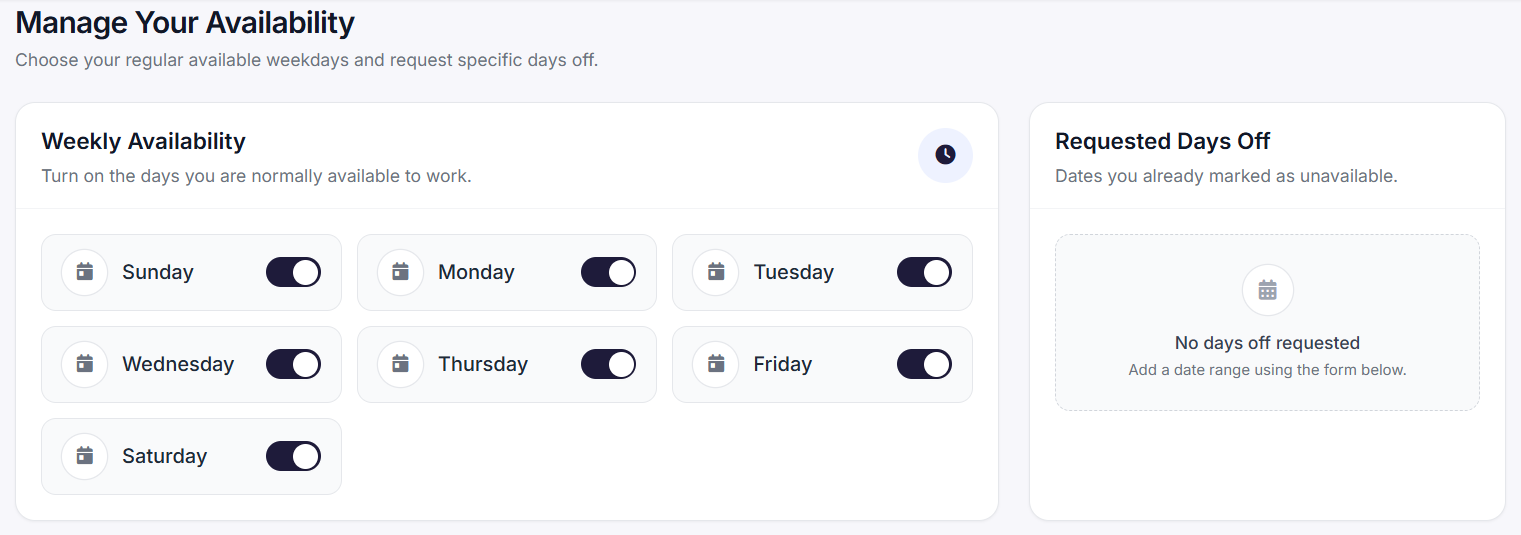
The My Availability page each staff member sees.
Know who's free before you offer a shift
On each event's staffing page, Event Inflow lets you filter your staff by Available, Declined, or Unavailable. Unavailable staff show the reason, such as Working Another Event or Day Off Request, so you don't offer a shift to someone who can't take it.
You can also sort staff by how many shifts they've declined in the last 30 days, by how many days since their last shift or until their next one, or by staff rank, like Elite or Reliable. Once you've picked your crew, you offer the shifts from the same page. Event staffing explains how Event Inflow builds each event's shifts from the quote.
Schedule work that isn't at an event
Event Inflow also schedules office and warehouse work. You can add a single shift or a weekly schedule for any person and position, set it to repeat each week, and add exceptions for days it doesn't apply. If the work needed is prep or follow-up for an event, you can link it to that event.
For event companies that staff more than one event at a time
Event Inflow scheduling fits casino party, AV, party rental, photo booth, and game rental companies, staffing agencies, and caterers, or any event business whose crew works several events in the same week. 21 Fun, a casino party company, schedules its dealers and delivery crews in several states across the U.S. from one calendar in Event Inflow.
Frequently asked questions
What is event staff scheduling software?
Event staff scheduling software shows which people are working which events, and when. Event Inflow puts every event and every shift on one schedule, so you can see open shifts and who is available before you offer work.
Can staff set their own availability?
Yes. In Event Inflow, each staff member chooses the weekdays they usually work and requests days off on their My Availability page.
Does Event Inflow show when someone is already working another event?
Yes. On each event's staffing page, Event Inflow lists that person as unavailable and shows Working Another Event. The Team Schedule also marks overlapping shifts.
Can I see open shifts across all my events?
Yes. Event Inflow's Team Schedule shows open shifts in their own row, the calendar marks events that need shifts, and the Pending Shifts page lists every offer that hasn't been answered.
Can I schedule work that isn't tied to an event?
Yes. Event Inflow lets you add single shifts or repeating weekly schedules for work like office or warehouse shifts, with exceptions for days off.
Can I filter the schedule by region or warehouse?
Yes. Event Inflow's calendar filters by region and zone, and the Team Schedule filters by person, position, and warehouse.
Every event and every shift on one schedule.
Event Inflow shows who's working, who's free, and which shifts still need someone.
Related: Event staffing · Event staff payroll · Event rental inventory
Last reviewed: 2026-10-16 · Mandi Shoemaker