Event Staff Time Tracking: Clock In, Add Hours, and Review Time
Event Inflow tracks the hours your crew and office staff work. Staff clock in to the shift or position they're starting, or add the hours they worked afterward, and an Admin reviews entries in Time Review.
Updated October 2026 · By Mandi Shoemaker
On this page: How it works · Clock in · Add time · Time Review · Outside-hours rules · Positions and pay · Who it's for · FAQ
How time tracking works in Event Inflow
- Staff clock in. On My Time, they choose the event shift or position they're starting and click Clock in.
- Staff add time they worked. If they didn't clock in, or worked outside their schedule, they report their start and finish with Add time you worked.
- You review it. Entries that need review show under Needs review in Time Review.
Clock in to an event shift or a position
Event Inflow's My Time tab starts with Ready to work? Staff pick the event shift or position they're starting, like Office Work, and click Clock in. If the work is outside their schedule, they add a reason. Their recorded hours appear on Your timesheet on the same tab.
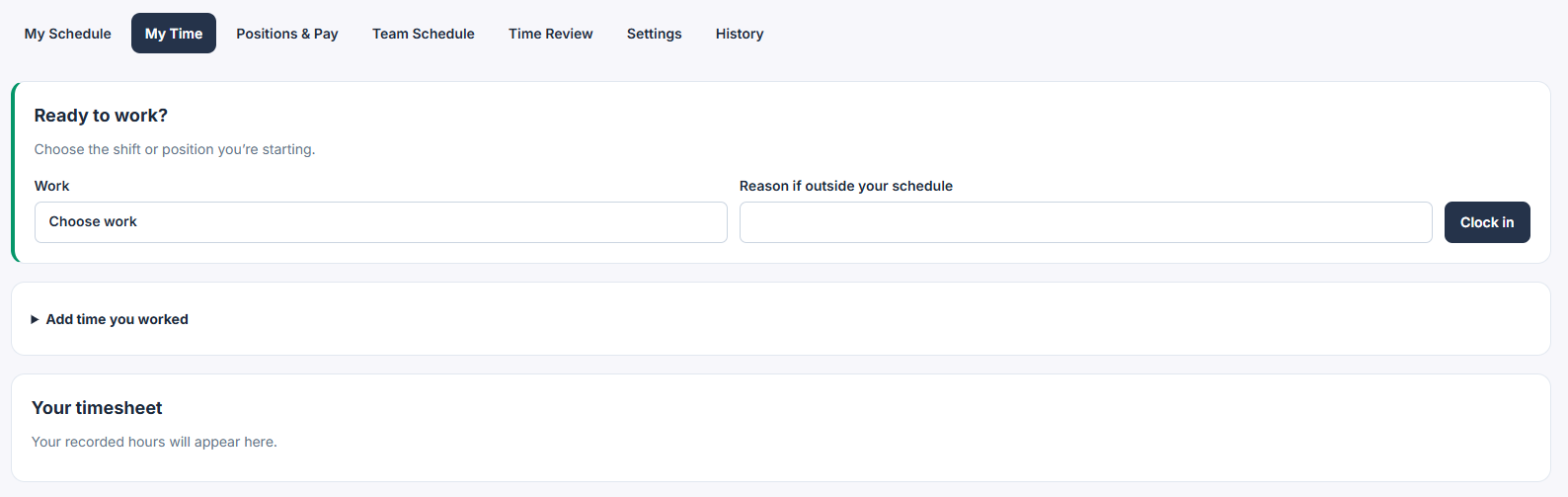
The My Time tab each staff member sees.
Report hours after the fact
With Event Inflow's Add time you worked, staff report the hours they actually worked, including work outside their schedule. Each entry includes:
- The event shift number, or the position and an optional event number
- The actual start and finish times, and the timezone
- Any unpaid breaks
- The staff person's reason for reporting outside their schedule
An Admin on your account reviews the entry. Admins can also add time for anyone on the team from Time Review.
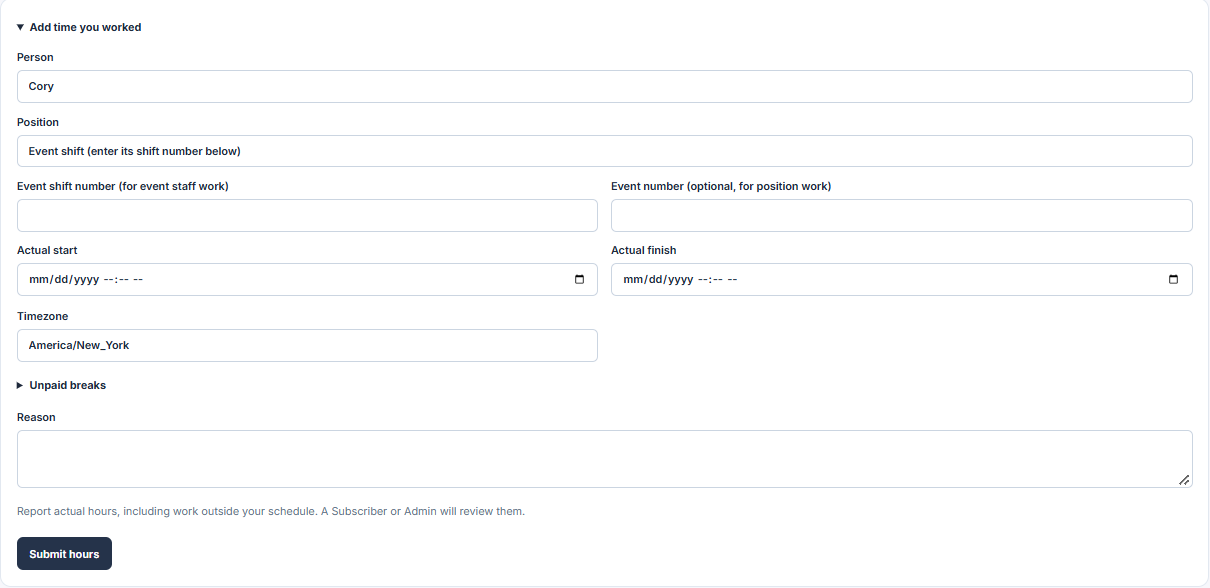
The form for reporting hours worked.
Review time entries in one place
Event Inflow's Time Review tab lists every time entry that needs review, so Admins can check entries from every team member in one place. The History tab records changes like payroll reviews, pay rate changes, and settings updates, along with who made each one, so you always know who changed what.
Set rules for work outside scheduled hours
In Event Inflow, you choose what happens when someone works outside their schedule:
- Allowed
- Reason required · manager review
- Prior approval required
Set a company default under Settings, then change the rule for any person's position under Positions & Pay. Staff can always report time they forgot to clock in for with Add time you worked.
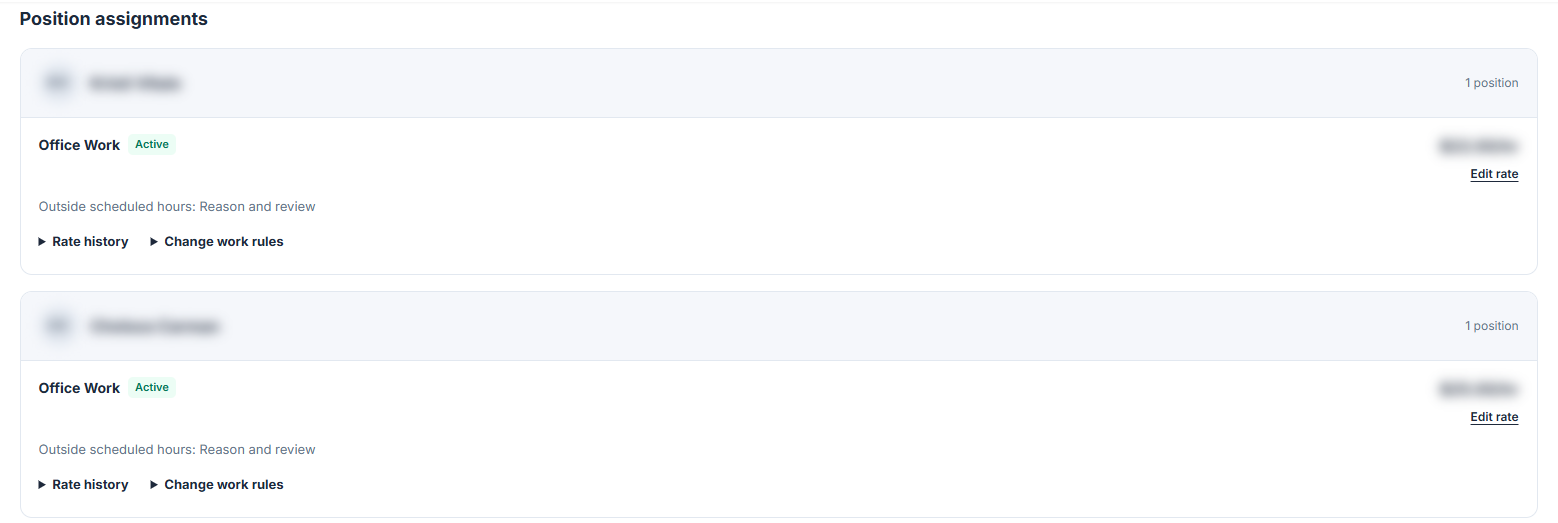
Office staff with a rule for hours outside their schedule, with names and pay rates hidden.
Hourly or salary pay for every position
In Event Inflow's Positions & Pay, you can create positions (for example, Office Work), assign them to staff with an hourly rate and the date it takes effect, and see each person's rate history. You can also set a salary per weekly payroll period and set each person's Overtime classification (Nonexempt or Exempt).
For salaried staff, you choose whether event shift pay is paid in addition to their salary or included in it. Event bonuses, tips, and reimbursements stay separate. Each person's staff profile also records whether they're an Employee or a Contractor. Event staff payroll explains how Event Inflow builds each person's pay.
For event companies with crews and office staff
Event Inflow time tracking fits casino party, party rental, AV, photo booth, and catering companies, staffing agencies, and everything in between. 21 Fun, a casino party company, sets up its office staff as Office Work positions in Event Inflow, alongside its event crews.
Frequently asked questions
How do event staff clock in?
In Event Inflow, staff open My Time, choose the shift or position they're starting, and click Clock in.
What if someone forgets to clock in?
They report their actual start and finish times in Event Inflow with Add time you worked, and an Admin reviews the entry.
Can I control when staff work outside their schedule?
Yes. Event Inflow gives you the option to allow it, require a reason and manager review, or require prior approval. Set a company default, then customize it for any person or position.
Can I track office or warehouse staff, not just event crews?
Yes. In Event Inflow, create a position like Office Work and assign it with an hourly rate so staff can clock in to that position.
Does Event Inflow handle salaried staff?
Yes. Event Inflow lets you set each person's pay as hourly or salary, and choose whether event shift pay is added to a salary or included in it.
Every hour your crew works, recorded and reviewed.
Event Inflow tracks event shifts, office hours, and time added after the fact in one place.
Related: Event staff payroll · Event staff scheduling · Team coordination
Last reviewed: 2026-10-21 · Mandi Shoemaker