Event Shift Offers: Invite the Right Staff to Every Open Shift
Event Inflow sends your open shifts to the staff you choose and tracks every answer. Pick the area, staff ranks, and roles, and Event Inflow emails each person an offer. You see who accepted, who declined, and who hasn't answered yet, for every event in one place.
Updated October 2026 · By Mandi Shoemaker
On this page: How it works · Mass invites · Invite responses · Pending shifts · Offer to free staff · What staff see · Who it's for · FAQ
How shift offers work in Event Inflow
- Choose who gets the offer. Open Mass Invite on the event's staffing page, then pick which zones, staff ranks, and roles to include. You can review the list and uncheck anyone before it goes out.
- Send the invites. Click Email only new to reach people who haven't been invited yet, or Email all selected to send it again to everyone on the list.
- Watch the answers come in. Each person shows as Awaiting response, Accepted, or Declined, and every unanswered offer across your events is listed on the Pending Shifts page.
Offer shifts by area, rank, and role
Event Inflow's Mass Shift Invites sends one offer to many people at once, in three steps:
- Choose zones. Zones are the service areas you set up, like Miami or Broward, each with its own staff cost. Event Inflow starts with the event's zone and lists your other zones from lowest to highest staff cost, so you can add more areas — lowest cost first — if you need more people.
- Filter by staff rank. Staff ranks are labels you create and give each person, like Elite, Reliable, or In Training. Keep every rank, or send only to the ranks you choose so you only get the best people for the job.
- Choose roles and recipients. Each open role shows how many people are available, have been invited, and accepted or declined an offer. Click View staff to uncheck anyone who shouldn't get this invite.
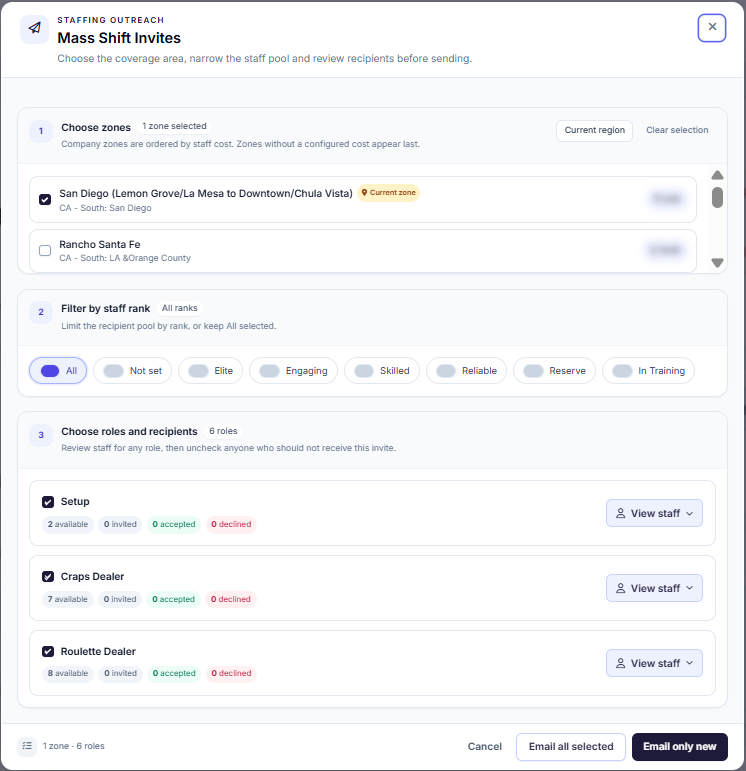
Example: a mass invite for a casino party event's dealer roles.
See every answer to every invite
For each role, Event Inflow keeps a list of everyone who was invited. Each person shows Awaiting response, Accepted, or Declined, with the date of the first offer and the last time it was sent.
As soon as one person accepts a mass invite, the shift is theirs and the invite closes for everyone else.
If someone hasn't answered, you can send the invite again to one person or to everyone still pending. The event's Staffing Activity feed shows each acceptance, decline, and assignment as it happens.
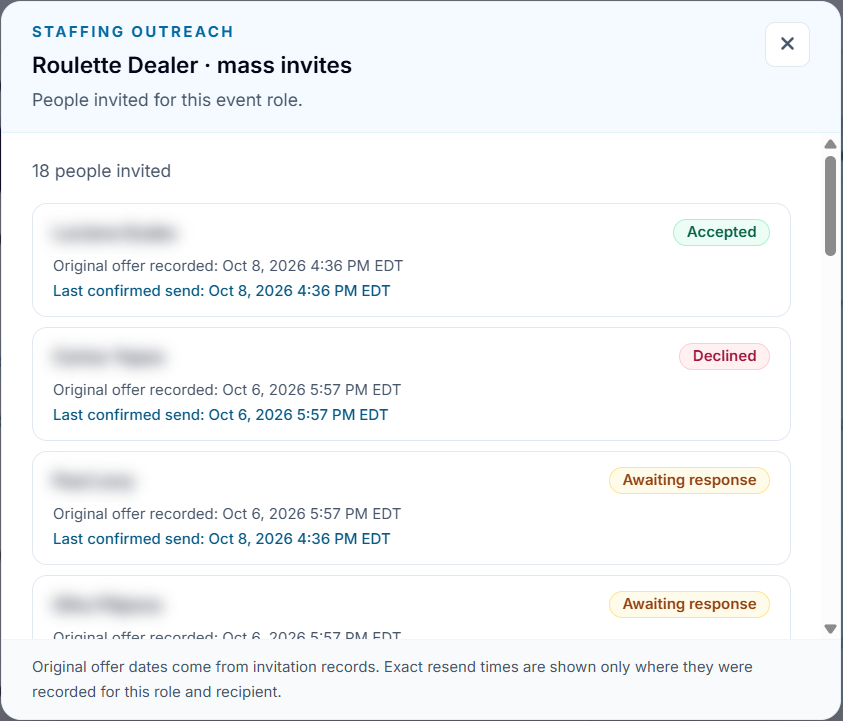
Example: responses to one roulette dealer invite.
Follow up on every unanswered offer
Event Inflow's Pending Shifts page lists every offer that hasn't been answered, across all your events. Each one shows the person's phone number, the event's city and date, the role, and how long ago it was offered. You can filter the list by region.
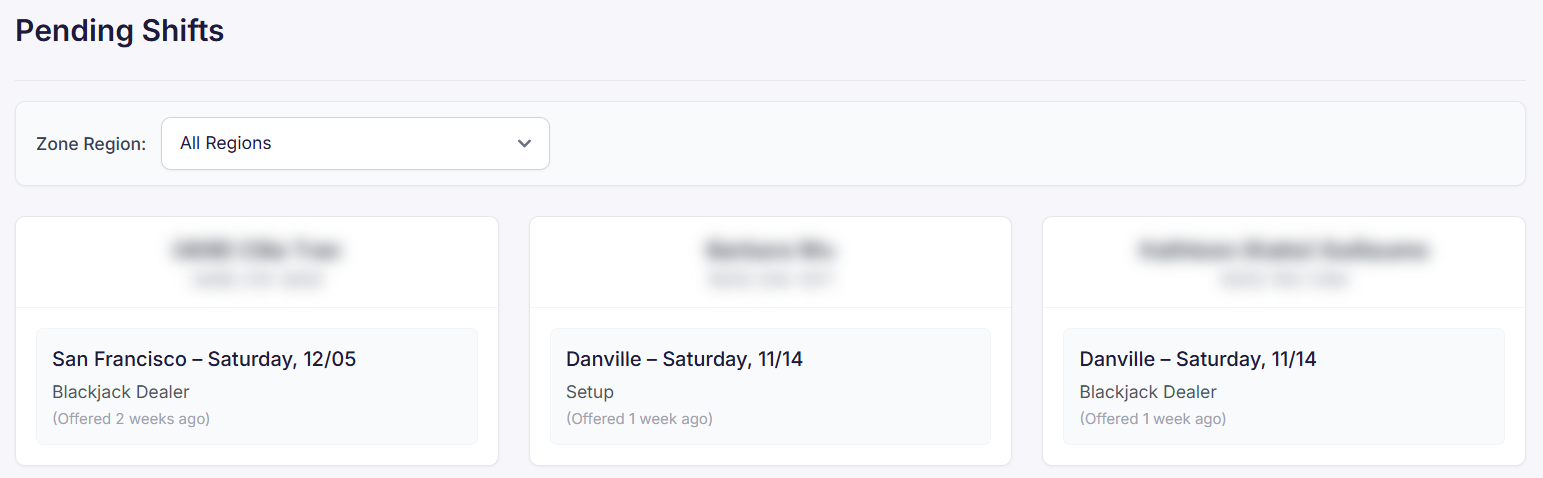
Example: unanswered offers, with names and phone numbers hidden.
Offer shifts to people who are free
On each event's staffing page, Event Inflow lets you filter staff by Available, Declined, or Unavailable, and shows why someone is unavailable, such as Working Another Event or Day Off Request. Event staff scheduling explains how staff set their availability.
What your staff see
In Event Inflow, every offer appears under Offers on the staff member's My Shifts page. They accept or decline it there, and their answer shows on the event's staffing page right away. Shifts they accepted show under Upcoming, and shifts they turned down show under Declined.
For event companies with a large crew to fill
Event Inflow shift offers fit staffing agencies, caterers, and casino party, AV, and party rental companies, or any event business that fills shifts from a large roster. 21 Fun, a casino party company, was able to send one roulette dealer invite to 18 dealers for a Miami event, and filled the shift with one of them.
Frequently asked questions
What is a shift offer?
A shift offer is an invitation to work a specific shift at an event, which the staff member accepts or declines. In Event Inflow, you can offer shifts to one person or send a mass invite to everyone who fits the zone, rank, and role.
Can I offer a shift to a group of staff at once?
Yes. Event Inflow's Mass Shift Invites emails an open shift to every staff member you select, filtered by zone, staff rank, and role.
What happens when someone declines?
In Event Inflow, the person shows as Declined for that invite, and their declines are counted on the event's staffing page. You can sort staff by declines in the last 30 days when choosing who to offer next.
What happens when someone accepts a mass invite?
In Event Inflow, the first person to accept gets the shift, and the invite closes for everyone else who received it.
Can I resend an offer to someone who hasn't answered?
Yes. Event Inflow lets you resend a pending invite to one person or to everyone who hasn't answered. Email only new skips people who were already invited.
Can I send offers only to my best staff?
Yes. In Event Inflow's Mass Shift Invites, filter by staff rank to send an offer only to the ranks you choose, like Elite or Reliable.
Where do staff accept shifts?
In Event Inflow, staff accept or decline offers under Offers on their My Shifts page.
Every open shift, offered to the right people.
Event Inflow sends your shifts to the staff you choose and shows every answer in one place.
Related: Event staffing · Event staff scheduling · Event staff payroll
Last reviewed: 2026-10-16 · Mandi Shoemaker